
SAP RAP Tutorial for ABAP Developers: Build a Fiori Elements CRUD App Step by Step
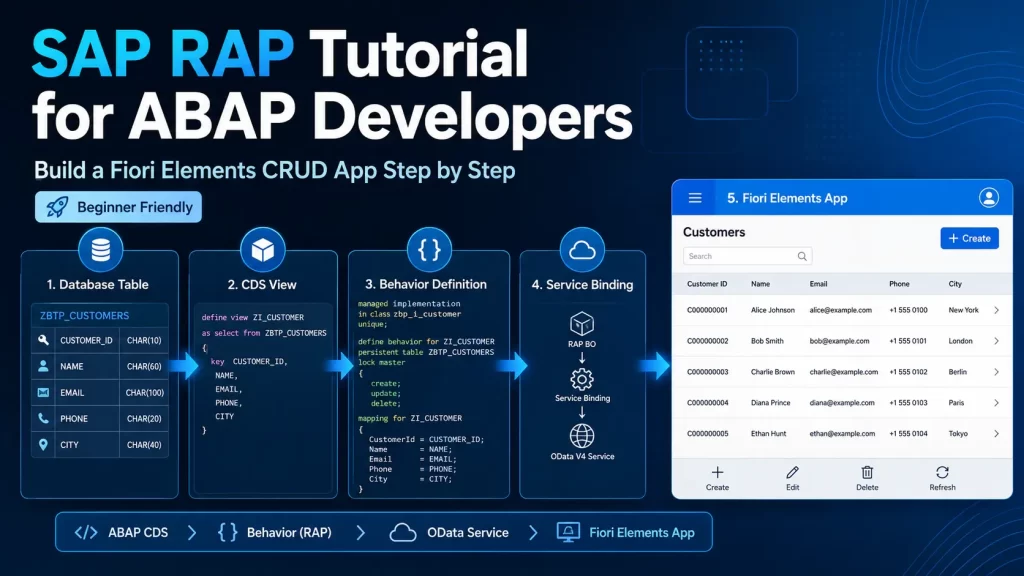
The purpose of this example is to guide you through the process of creating a basic application using Fiori Elements.
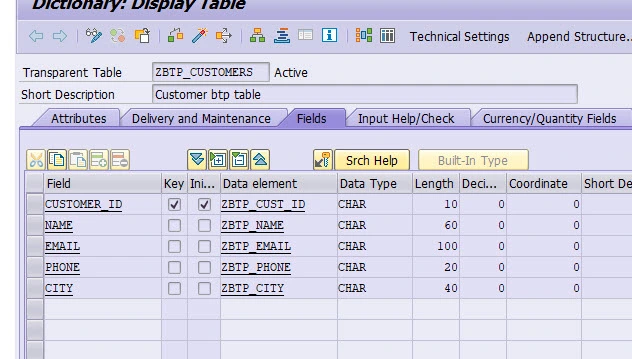
First, we need to create a custom table called ZBTP_CUSTOMERS, as shown below:
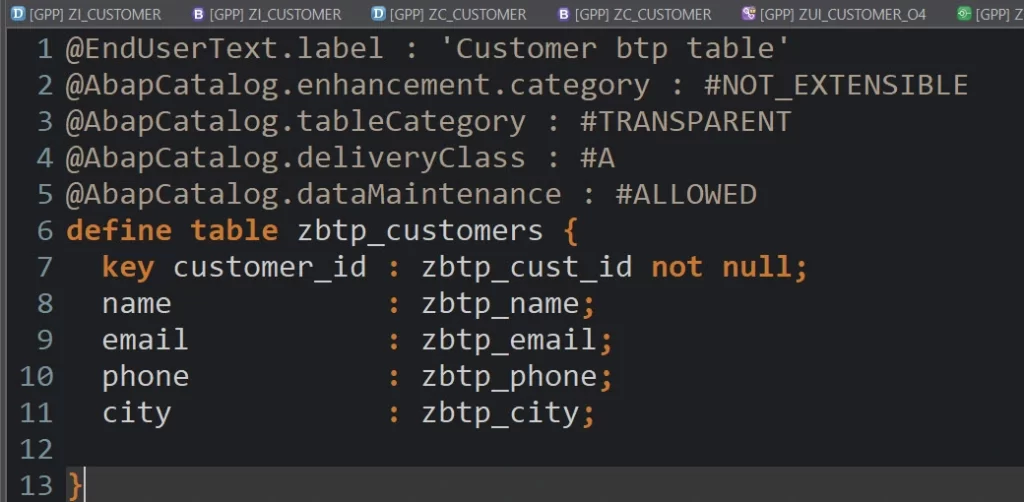
If you are not familiar with how to create a Z table in Eclipse:
STEP 1 — Create the CDS Interface
We already have our table:ZBTP_CUSTOMERS
Now, in Eclipse / ADT:
- Find your package.
- Right-click on the package.
- Select:
→ Other ABAP Repository Object
→ Core Data Services
→ Data Definition
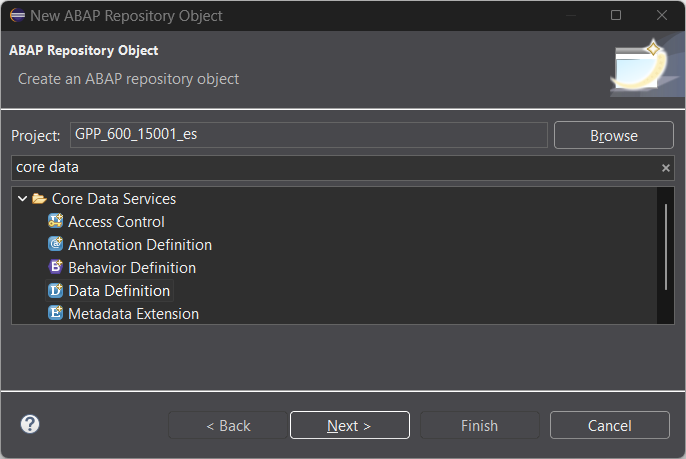
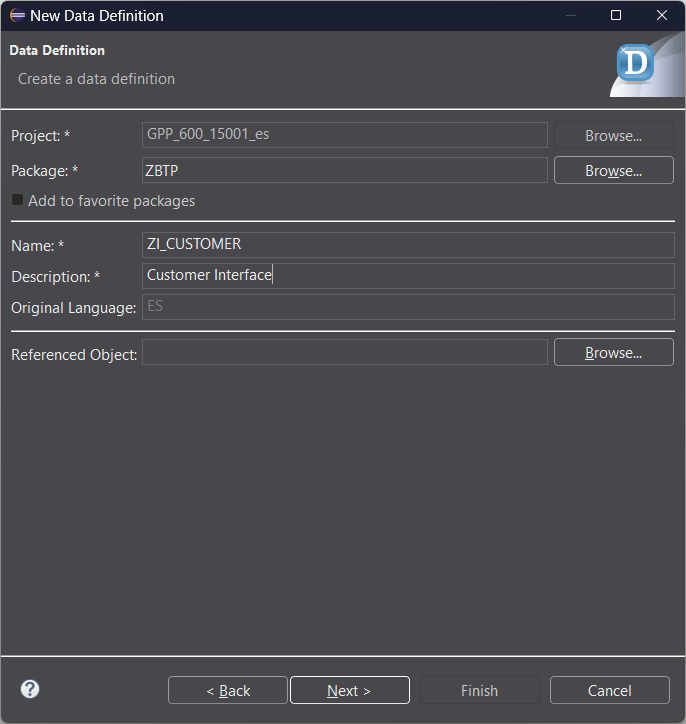
Next -> Finish
Then, remove generated code paste thisone:
@AccessControl.authorizationCheck: #NOT_REQUIRED
@EndUserText.label: 'Customer Interface'

define root view entity ZI_CUSTOMER
as select from zbtp_customers

{
key customer_id as CustomerId,
    name  as Name,
    email as Email,
    phone as Phone,
    city  as City

}Save:
Ctrl + S
Activate:
Ctrl + F3
The important part here is that we are creating the root view entity on which we will build the RAP Business Object.
At the end of this step you should have:
ZBTP_CUSTOMERS
↓
ZI_CUSTOMER
And ZI_CUSTOMER should appear active and error-free.
STEP 2: Create the Behavior
Now we are going to enable CRUD operations for ZI_CUSTOMER.
1. Create the Behavior Definition
In Eclipse / ADT:
- Right-click on
ZI_CUSTOMER. - Select:
New
→ Behavior Definition
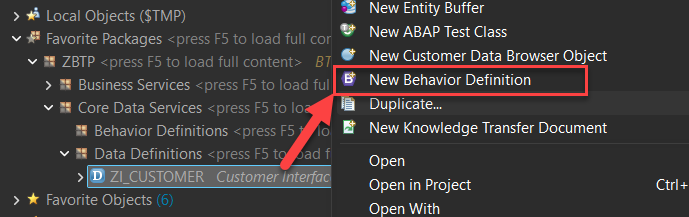
- Select the implementation type: Managed
- Click Finish.
The managed scenario allows RAP to handle the standard create, update, and delete operations.
2. Replace the Code
Leave the Behavior Definition exactly as follows:
managed implementation in class zbp_i_customer unique;

define behavior for ZI_CUSTOMER
persistent table ZBTP_CUSTOMERS
lock master
{
  create;
  update;
  delete;

  mapping for ZBTP_CUSTOMERS
  {
    CustomerId = CUSTOMER_ID;
    Name       = NAME;
    Email      = EMAIL;
    Phone      = PHONE;
    City       = CITY;
  }
}Ctrl + S and Ctrl + F3
PASO 3 — Crear el CDS Projection
In your package:
Right-click → New → Other ABAP Repository Object → Data Definition
Name:
ZC_CUSTOMER
@AccessControl.authorizationCheck: #NOT_REQUIRED
@EndUserText.label: 'Customer Projection'

@UI.headerInfo: {
    typeName: 'Customer',
    typeNamePlural: 'Customers',
    title: { type: #STANDARD, value: 'Name' }
}

define root view entity ZC_CUSTOMER
  provider contract transactional_query
  as projection on ZI_CUSTOMER
{
      @UI.lineItem: [{ position: 10 }]
      @UI.identification: [{ position: 10 }]
  key CustomerId,

      @UI.lineItem: [{ position: 20 }]
      @UI.identification: [{ position: 20 }]
      Name,

      @UI.lineItem: [{ position: 30 }]
      @UI.identification: [{ position: 30 }]
      Email,

      @UI.lineItem: [{ position: 40 }]
      @UI.identification: [{ position: 40 }]
      Phone,

      @UI.lineItem: [{ position: 50 }]
      @UI.identification: [{ position: 50 }]
      City
}The projection is the layer that we will specifically expose to our Fiori service.
Ctrl + F3
STEP 4 — Create the Projection Behavior
Now:
Right-click on ZC_CUSTOMER → New Behavior Definition
It should be of type: Projection
projection;

define behavior for ZC_CUSTOMER
{
  use create;
  use update;
  use delete;
}Activate: Ctrl + F3
This makes the operations we already have in ZI_CUSTOMER available in our projection as well.
STEP 5 — Create the Service Definition
In your package:
Right-click → New → Other ABAP Repository Object → Business Services → Service Definition
Name:ZUI_CUSTOMER
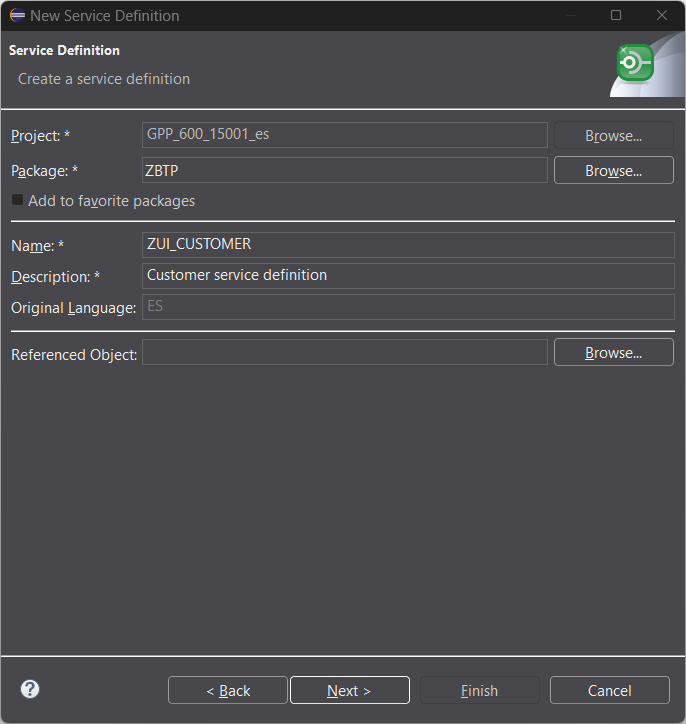
Next -> Finish
Code:
@EndUserText.label: 'Customer Service'

define service ZUI_CUSTOMER {
  expose ZC_CUSTOMER as Customers;
}Activate it using:
Ctrl + F3
The Service Definition specifies which CDS view we want to expose as a service.
STEP 6 — Create the Service Binding
Now:
Right-click on ZUI_CUSTOMER → New Service Binding
Name: ZUI_CUSTOMER_O4
Select:
Binding Type:OData V4 - UI
Service Definition:ZUI_CUSTOMER
The Service Binding connects our Service Definition to OData so it can be consumed by Fiori.
Open: ZUI_CUSTOMER_O4
Activate it: Ctrl + F3
Then click: Publish
You should see the entity: Customers
STEP 7 — Test the Application
In the Service Binding, find:Customers
and click:Preview
or: Fiori Elements App Preview depending on your ADT version.
Result
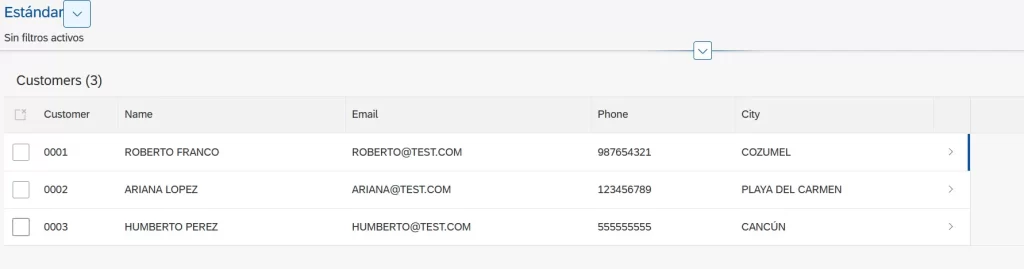
-
Arjun Sharma. says:
Very interesting! I followed the tutorial step by step, and it worked perfectly. I hope you can share more examples like this, especially focused on RAP and aimed at classic ABAP developers like me. Thank you!
It works, thank you, please share content like this is very helpful